Windows 11 26H2 is going to be the next annual feature update for the operating system to launch in fall 2026. Microsoft has clarified that this operating system update makes use of enablement package (eKB), which is a small update that changes the version number but does not change the whole OS itself. The update is based on the same platform as Windows 11 24H2 and 25H2 Download, and hence the installation is quick with just one reboot.
What is New Features Windows 11 26H2 ISO
- There have been no notable features exclusive to the build 26H2 by Microsoft.
- It has become customary for Microsoft to ship big changes through monthly cumulative updates instead of packing those changes into annual feature updates.
- For instance, there was an update during the last Patch Tuesday that featured the introduction of Low Latency Profile to improve CPU speeds in order to speed up application launches and shell experiences, which in previous years would have come along in the feature update.
- Microsoft has revealed that it is working on bringing back a moveable taskbar through future quality update, though the feature still hasn’t been rolled out to stable builds by June 2026.
- The Build 26300.8697, which carries the designation 26H2 under the Experimental channel, has included changes like fixes for visual consistency for the copy dialog and for dark mode in File Explorer, start menu updates where the presence or absence of apps gets reflected without having to log out or reboot the PC, and the taskbar fix so that the system tray does not get cropped in case of the small taskbar.
Install using the enablement package
For those who have installed Windows 11 24H2 and 25H2, 26H2 will be installed primarily using an enablement package, just like 25H2. It is a fast process (only takes a few minutes) and keeps applications and data intact.
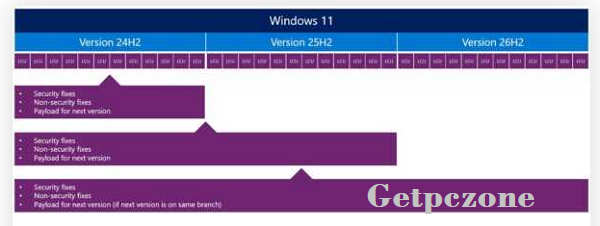
EKB or the enablement package is a tiny upgrade (less than 500 KB) that will allow features in the operating system to be enabled. Instead of upgrading the entire OS, Windows Update installs the small package and bumps the version number. This method has been employed by Microsoft from Windows 11 23H2 to minimize disruptions during deployment. If your machines already use version 24H2 and 25H2, then the upgrade to 26H2 works just like any monthly update.
Timeline of monthly feature rollouts.
System requirements
Download Windows 11 26H2 doesn’t add any new hardware requirements. You can use it if you’re using Windows 11 24H2 or 25H2 now. The minimum hardware requirements are the following:
- A 1 GHz or faster 64-bit dual-core processor;
- 4 GB RAM;
- 64 GB hard drive;
- TPM 2.0 (Trusted Platform Module, a hardware chip providing cryptographic functions);
Secure Boot support.
Please note that Windows 11 26H1 is another update designed for new silicon like NVIDIA N1 or Snapdragon X2. The devices running 26H1 are not able to install 26H2 since they work on a different Windows core.
How to download Windows 11 26H2 ISO?
In June 2026, Microsoft doesn’t provide the official 26H2 ISO on its public download page. The latest stable version available through Microsoft is 25H2. There are two ways of obtaining 26H2 ISO for testing purposes.
Option 1: Windows Insider Program
You can join your computer to the Windows Insider program, then choose the Experimental channel to get access to 26H2 builds via Windows Update. Alternatively, you can find out information about Insider Preview ISOs on the Windows Insider Preview Downloads page after they become available.
Option 2: Create ISO with UUP Dump
UUP Dump is a community utility that helps download official updates for Windows directly from Microsoft servers and make an ISO from them. Files themselves are official Microsoft files. In order to make a 26H2 ISO:
- Open the [UUP Dump site](https://uupdump.net/) and look for the newest build in the 26300.xxxx family.
- Pick the Windows 11, 26H2 release according to your architecture (either x64 or arm64).
- Pick your language and choose the editions you need.
- Pick Download and ISO convert and enable Include updates (Windows converter only).
- Click Create download package and save the archive.
- Unpack the archive and right-click uup_download_windows.cmd file and Run as administrator.
- Hit R and enter. The script will do its work and generate the ISO image. This may take about an hour and require roughly 70 GB of disk space.
The resultant ISO will be saved to the same folder from which you had unzipped the installation tool.
Installation from the ISO file
After getting the ISO file, there are different ways in which it can be used to install Windows.
In-place Upgrade
Open the ISO file, right-click on it and click Mount, which creates a virtual DVD drive. Click on the DVD drive to launch it and run setup.exe file for an in-place upgrade.
Bootable USB using Rufus
Rufus is a free utility that creates bootable USB drives from ISO files. After downloading Rufus from its official website:
Plug in a USB drive with a minimum capacity of 8 GB.
Open Rufus and select your USB drive as the Device.
Press Select and browse to the 26H2 ISO file.
Under Partition scheme and Target system, select GPT and UEFI (non-CSM), respectively.
Hit Start. If your hardware does not satisfy the Windows 11 criteria, you could go for other options like deleting the requirement of 4GB+ RAM, Secure Boot, and TPM 2.0 through the window that pops up.
Perform Clean Install Using the Installation Media (DVD or USB)
Boot your target machine from the installation media. You might have to modify the boot order settings of the UEFI firmware or turn off the Secure Boot option.
- Connect a USB drive with minimum storage space of 8GB.
- Open Rufus and select the selected USB drive from the Device option.
- Click on Select button and select the 26H2 ISO file.
- Select GPT for Partition scheme and UEFI (non-CSM) as the Target system.
- Click on Start. If your hardware does not support Windows 11, then there are options to deselect requirements
- like removal of 4GB+ RAM, Secure Boot, and TPM 2.0 requirement.
Fresh installation using DVD/USB drive
Booting the computer with the installation source is done by changing the boot order in the BIOS settings or disabling Secure Boot. The fresh installation is done following the instructions displayed by Windows Setup.
Support lifecycle
With the deployment of 26H2 your devices begin a new support lifecycle:
- 24-month support for Home, Pro, Pro Education and Pro for Workstations editions (ending October 2028 approximately)
- 36-month support for Enterprise, Education, IoT Enterprise and Enterprise Multi-Session editions (ending October 2029 approximately)
Your annual update thus becomes another important milestone to remain within the supported window for your environment.
Service strategies considerations
Because of the installation of 26H2 as an enablement pack, there is no need for reimaging of devices or complex deployment process. It can be deployed with the help of the update management processes already used by you. It requires a single reboot that will cause minimal impact on the end-user experience.
Please note that version 24H2 comes to end of life on October 13, 2026. It means that the planning of migration to 25H2 or 26H2 should be made before that date.
Get ready for Windows 11, version 26H2 – Windows IT Pro Blog
Download Windows 11 – Microsoft
Windows 11 Insider Experimental Preview Build 26300.8697 – Microsoft Learn

Windows 11 26H2 is going to be the next annual feature update for the operating system to launch in fall 2026.
- Developer :
- Version :
- Language :Multilanguage
- Update :
- License :
- Systems :
- Downloads :
- Vote Software :(0 votes, Average: 0)
- Compatibility :Windows 11